Split the amount
For example, divide ₹5,000 into ₹1,513, ₹1,934 and ₹1,553 using automatic or custom amounts.
UPI SPLIT & UPI MANAGEMENT
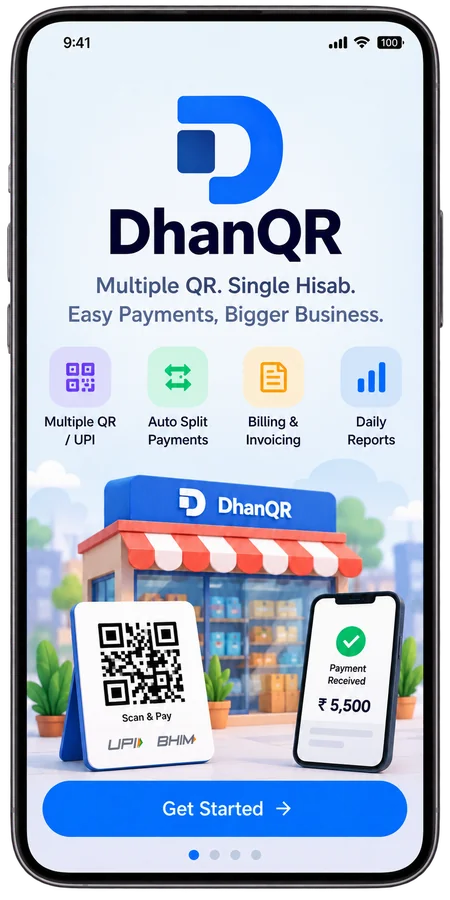
DhanQR is a UPI split payment and UPI account management app for receivers in India. Divide a collection amount across your own UPI IDs, create a separate amount-prefilled QR for each split, and manage pending and manually marked received records.
 Amount splits
 Your UPI
accounts
 Collection
records
Separate QR payments. Money goes directly to the selected UPI accounts.
How to add DhanQR to your Home Screen Open web app →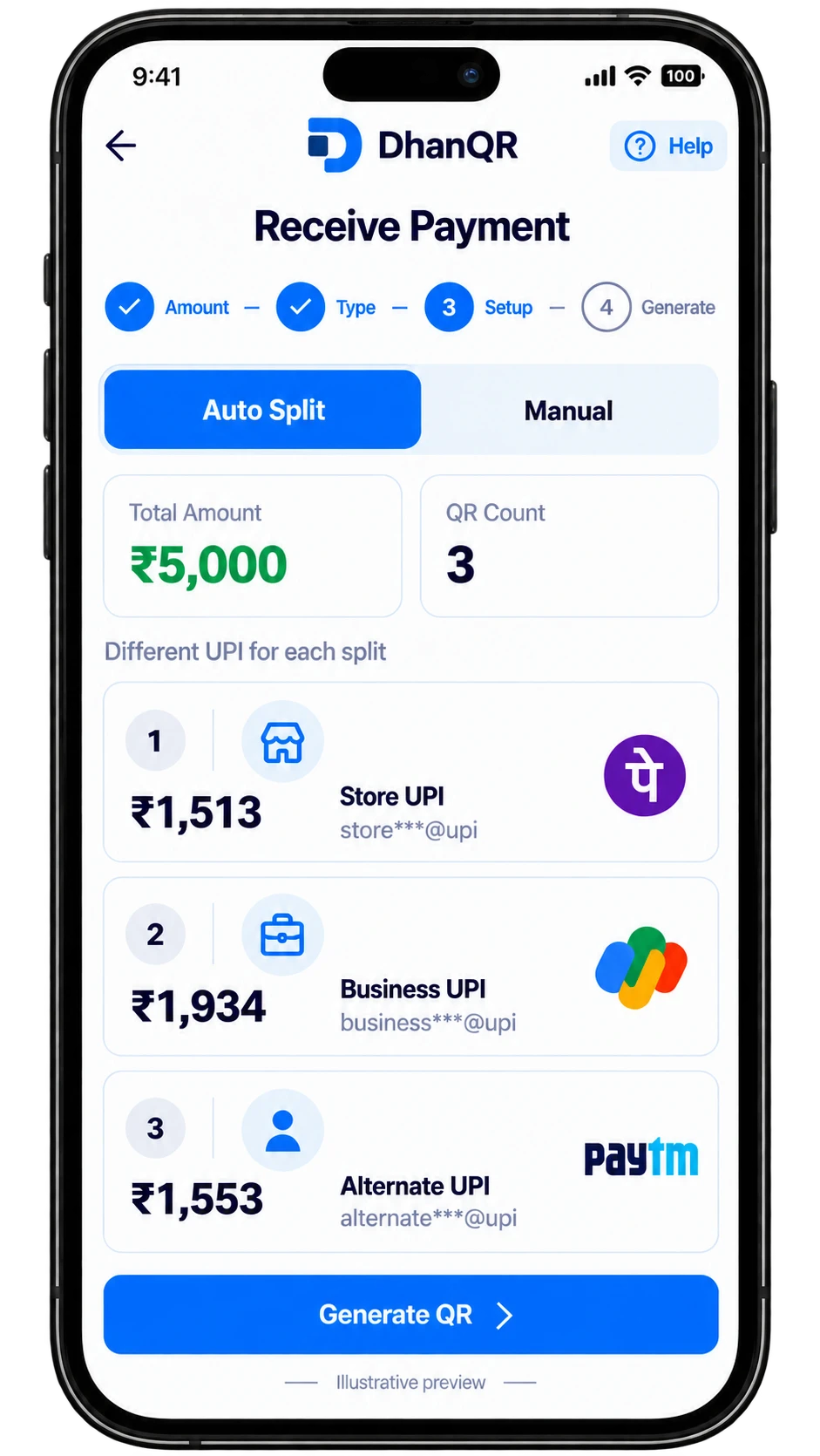
ONE COLLECTION, MULTIPLE PAYMENTS
Divide the collection amount before your customer pays. Choose a receiving UPI account for each part.
For example, divide ₹5,000 into ₹1,513, ₹1,934 and ₹1,553 using automatic or custom amounts.
Assign your receiving UPI accounts. Generate a separate amount-prefilled QR for each split.
The customer pays each QR separately. Check your bank or UPI app, then mark the split as received.
Clear payment records: DhanQR does not hold funds. “Received” is a status you mark manually; it is not independent confirmation from a bank or payment provider.
YOUR ACCOUNTS, ONE WORKSPACE
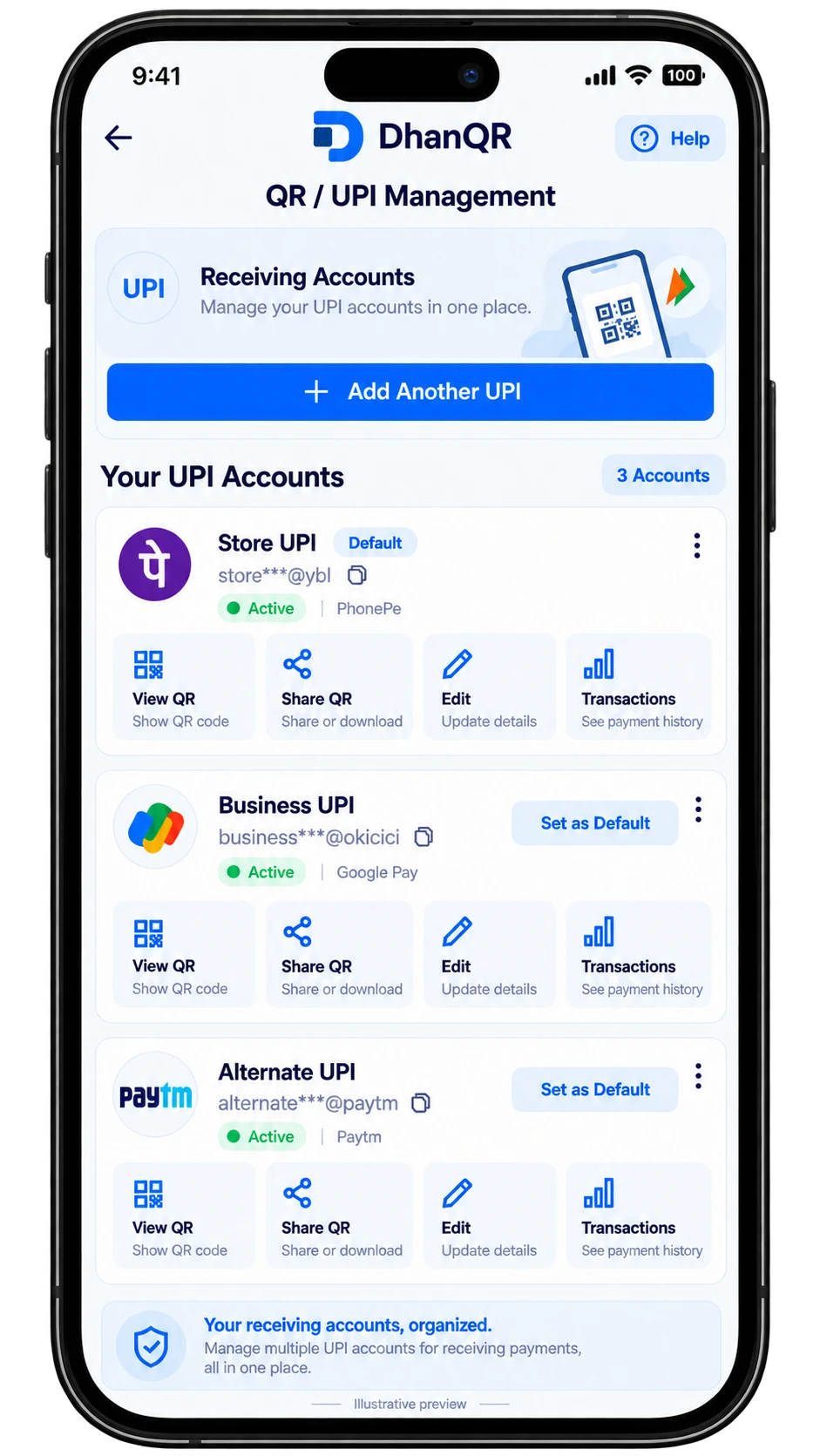
Organize multiple UPI accounts with recognizable names and a default receiving account. Choose a different UPI ID for each split without re-entering account details for every collection.
From collection amount to QR codes and manually updated records.

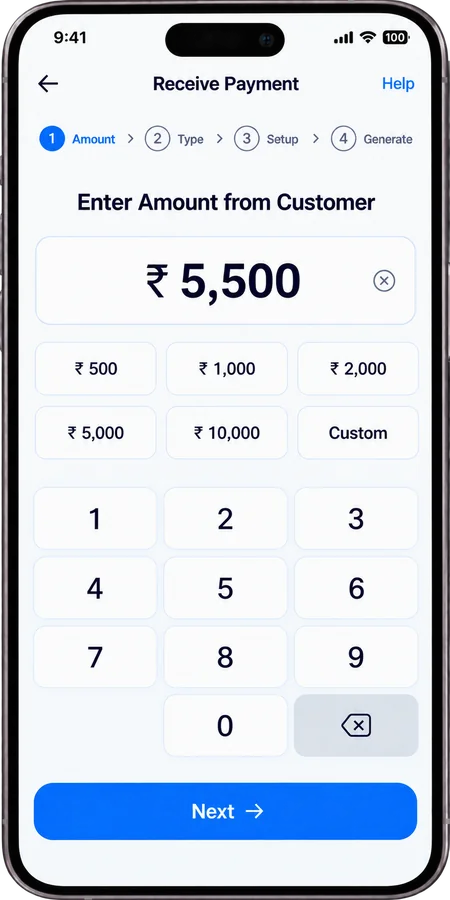
Enter the customer amount.

Use one receiving UPI or choose accounts per split.

Use automatic or custom amounts. Choose UPI for each split.

Generate a QR for each split. The customer pays each QR separately.

Check your bank or UPI app, then manually mark each split received.
Swipe to explore steps
Split amounts, choose receiving accounts and keep clear collection records.
Automatic or custom amounts for each split

Organize accounts and choose where each split goes
Each QR includes its amount and receiving UPI
Pending and manually marked received amounts
Manage products and track stock levels
Review income, expenses and profit or loss

Create invoices with items

Save customer details and history

Review daily collection records
View collection trends and reports

Manage your stores in one app

Share invoices and receipts

Payments go to your own UPI account
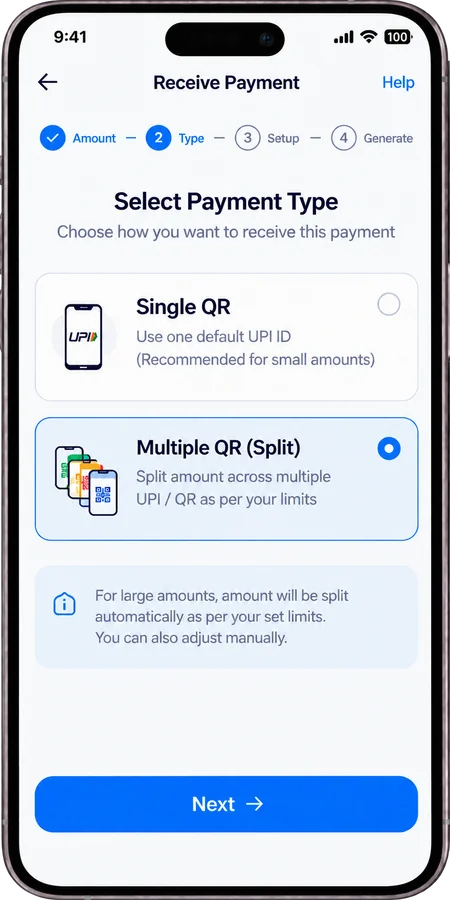
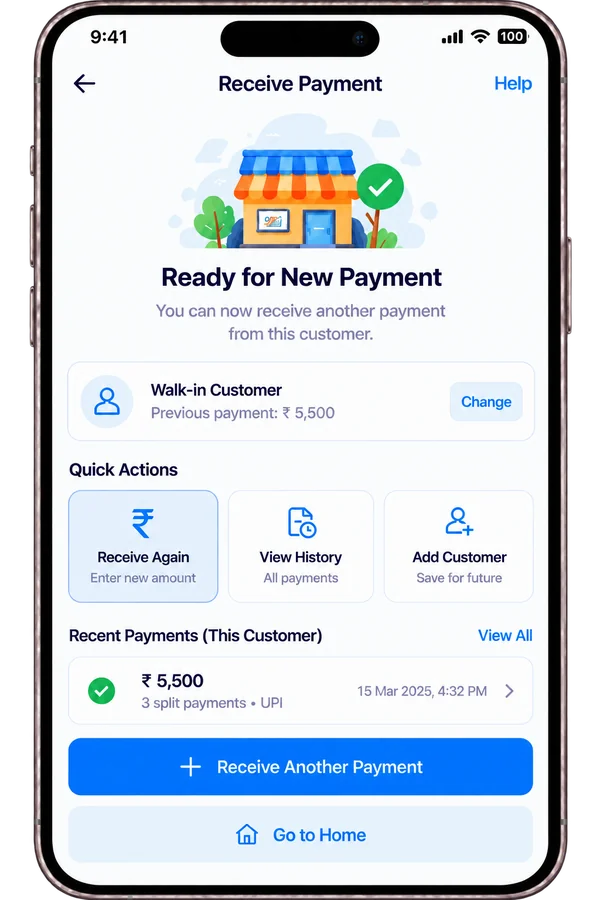
Enter an amount, choose single or multiple QR, and manage your collection from one place.
Swipe to explore payment screens
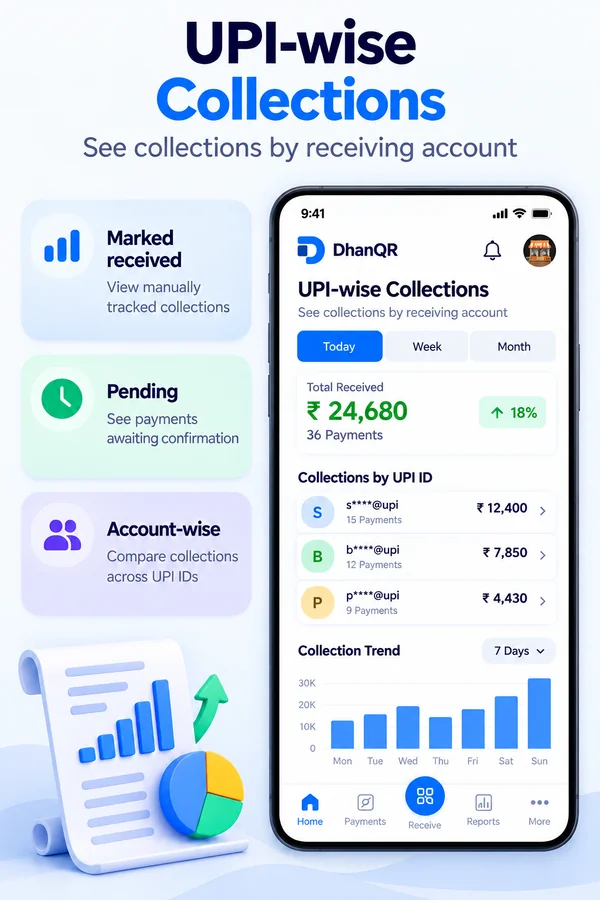
Review collection records for each receiving UPI, including pending and manually marked received amounts.
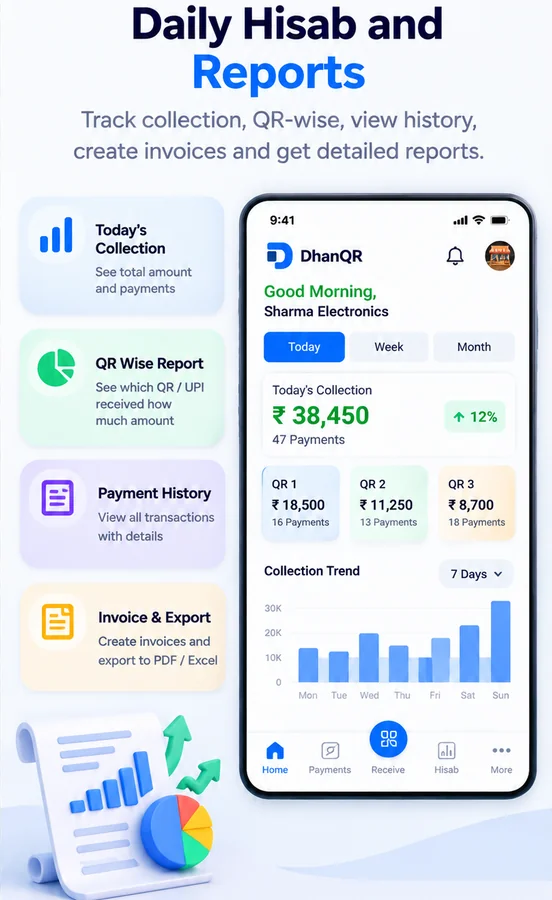
Reports reflect your collection records. A manually marked received amount is not independent bank confirmation.
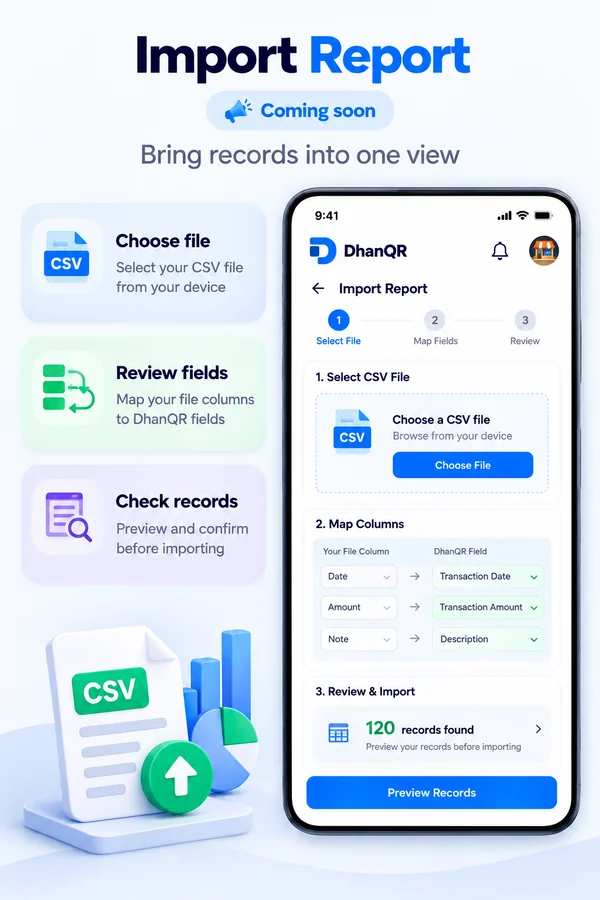
Swipe to explore report screens
Manage your business locations from a single app. Switch stores and view separate reports, products and settings.
PLANS & AVAILABILITY
Final plan names, pricing and feature entitlements will be published before launch. Check the app for current access and availability.
One workspace for the different ways you run your business.
Manage QR collections, billing and daily hisab together.
Retail storesPayments and invoicesSwitch between stores and review each location separately.
Multi-store businessesOne account, many locationsCreate split QR collections for your own UPI accounts.
Independent sellersFlexible collectionsOpen the web app in your browser, then add it for quick access.
 Android ·
Chrome
Menu wording can vary by device and browser version.
 iPhone ·
Safari
Open DhanQR from its new Home Screen icon.
Need help? In the app, open More → Help & Support. Payment and privacy guidance is also available in Account & Language.
Understand the payment flow before your first collection.
DhanQR is a UPI split payment and account management app for individual receivers, freelancers and businesses in India. It organizes your receiving UPI IDs, creates amount-prefilled payment QR codes and maintains collection records. Payments go directly to the selected UPI accounts; DhanQR does not hold funds or independently verify bank settlement.
In DhanQR, enter the total collection amount, select Multi mode, choose automatic or custom split amounts, and assign one of your receiving UPI accounts to each split. Generate the QR codes, then ask the customer to pay each QR separately.
No. DhanQR divides the collection amount into separate payment instructions before payment. Each generated QR directs its split amount to its selected UPI account. The customer makes a separate payment for each QR.
Yes. DhanQR keeps your receiving UPI accounts in one place. Give them recognizable names, choose a default account, and select a receiving UPI for each split in Multi mode.
Single mode uses one receiving UPI account for the generated QRs. Multi mode lets you choose a receiving UPI account for each split.
Yes. Each generated QR contains the amount and receiving UPI for that split. The customer completes a separate payment for each QR.
Each payment goes directly to the selected receiving UPI account. DhanQR does not hold funds.
No. Check your bank or UPI app first, then manually mark the split received in DhanQR. This status is your collection record.
No. The customer scans the payment QR with their UPI app. You use DhanQR to prepare the collection and maintain its records.
Keep that split pending until you confirm its payment in your bank or UPI app. Review the remaining amount before marking the collection complete.
One place for simple, clear UPI QR collection management.
Home Screen installation guide Open web app →